First, let me explain how a successful clocking looks on your dashboard.
If the clocking record is successful:
- You will receive a successful clocking confirmation message.
- The clocking window will close automatically.
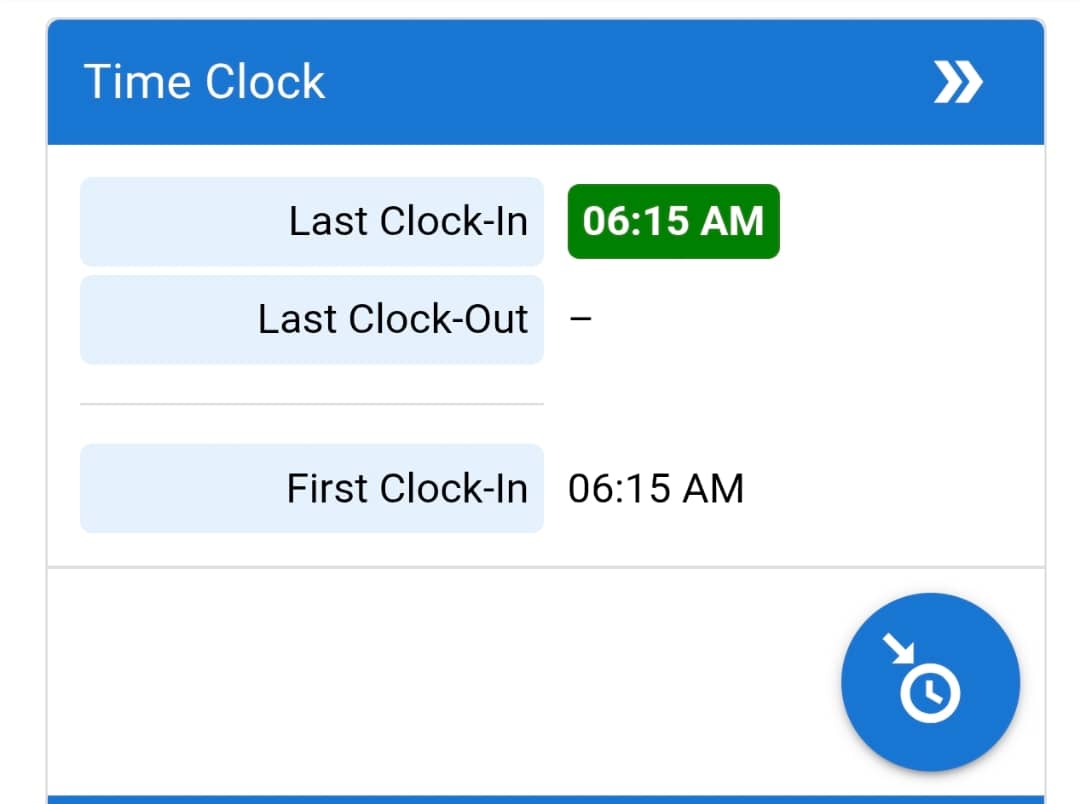
- You will see your latest clocking result in the Time Clock portlet, as shown below:
If the clocking fails:
- You will receive an error message.
- The clocking window will not close.
- Your last clocking result in the Time Clock portlet will not be updated. It will continue to show the previous result.
From time to time, users report that a clocking record is missing. Based on feedback from various cases, below are the most common causes:
A. No Clocking Recorded — Your clocking was not successful
- You performed a Field Check-In instead of a Time Clock action.
This often happens if the wrong button is clicked.
- Time Clock button = blue
- Field Check-In button = green
Note for employers: If your organization does not use the Field Check-In feature, it is advisable to disable it via Attendance → Setting to reduce such mistakes.
-
You accidentally performed an overnight clocking.
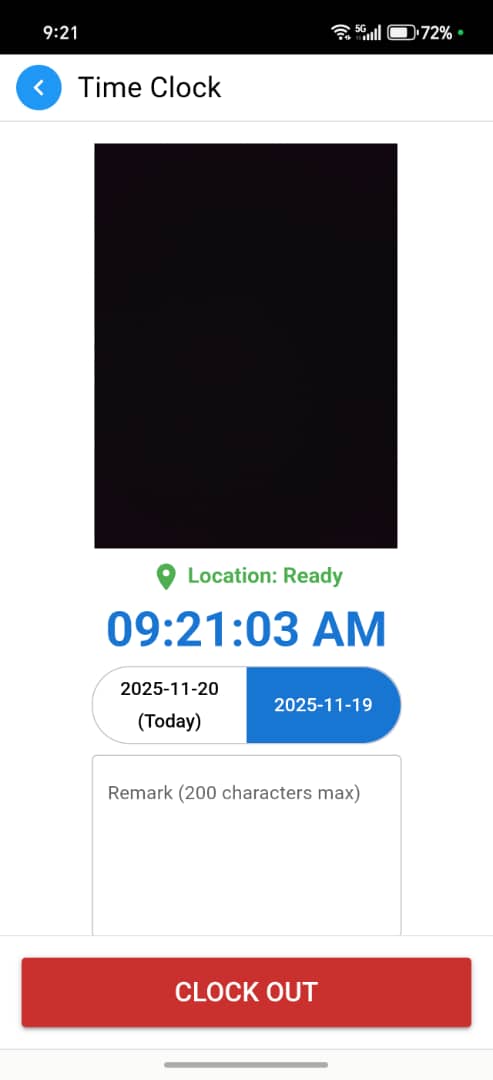
If you forgot to clock out yesterday and it is still within 24 hours of yesterday’s First Clock-In, the clocking window will display two date options: Today and Yesterday.
If you mistakenly select Yesterday, the system will switch the action to Clock Out. Proceeding with this will clock you out of yesterday’s record instead of clocking you in for today.
-
Your clocking action actually failed, but you missed the error message.
Clocking may fail due to network or connectivity issues. Always verify your status using the indicators listed in the “If the clocking record is successful” section above. -
You forgot to clock in/out but thought you had done it.
This is more common than many users realize.
B. Clocking Recorded — Your clocking was successful
-
You cannot find the record in Attendance → Time Clock report.
This is usually caused by incorrect filter settings.
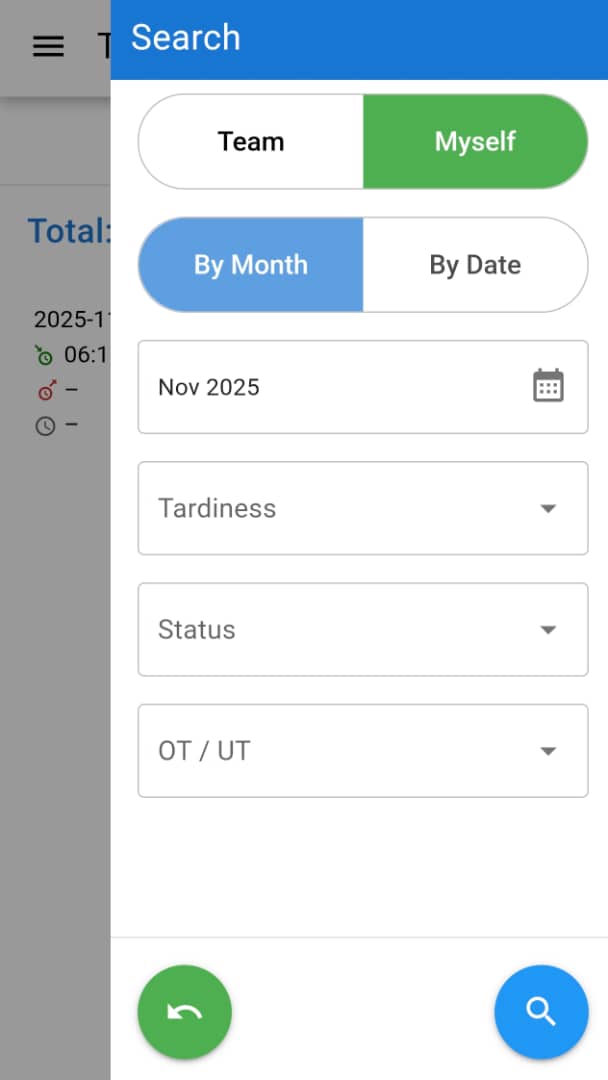
Ensure you have selected “Myself” in the report filter, as shown below:
-
Your HR may have deleted the attendance record accidentally.
This can occur in organizations that frequently recycle storage by deleting older Time Clock records.